
You can use multiple tools to download, host, and interact with large language models (LLMs) for generative tasks, including coding assistants. This post describes the one that I tried that has been the most successful. Even if you follow the approach below and it works well for you, I recommend trying different combinations of LLM and coding assistant so that you can find the setup that’s most ergonomic.
Choose hardware
You need to use a computer with either sufficient GPU, or dedicated neural processing, capacity to run an LLM, and enough RAM to hold gigabytes of parameters in memory while also running your IDE, software under development, and other applications. As an approximate rule, allow 1GB for every billion parameters in the model.
I chose Mac Studio with M3 Ultra and 256GB RAM. This computer uses roughly half of its memory to host the 123 billion parameter Devstral 2 model. A computer with 32GB RAM can run a capable small model; for example, Devstral Small 2: in this walkthrough I’ll show how to set up that model using Mistral Vibe as the coding assistant.
Note that once you have the model working locally, you can share it on your local network (or, using a VPN or other secure channel, over the internet) and access it from your other computers. You only need one computer on your network to be capable of hosting the LLM you choose to use local inference from any computer on that network.
Install LM Studio
Visit LM Studio and click the download button. Follow the installation process for your operating system; in macOS, you download a DMG that you open, and drag the app it contains into your Applications folder.
Download the model
Open LM Studio, and open the Model Search view by clicking on the magnifying glass. In macOS, check the MLX box to use the more efficient MLX format, and leave GGUF unchecked. Search for “Devstral Small 2 2512”, and click Download to download its weights and other configuration data. The second number (2512) refers to the release date of the model—in this case, December 2025.
Load the model and test it
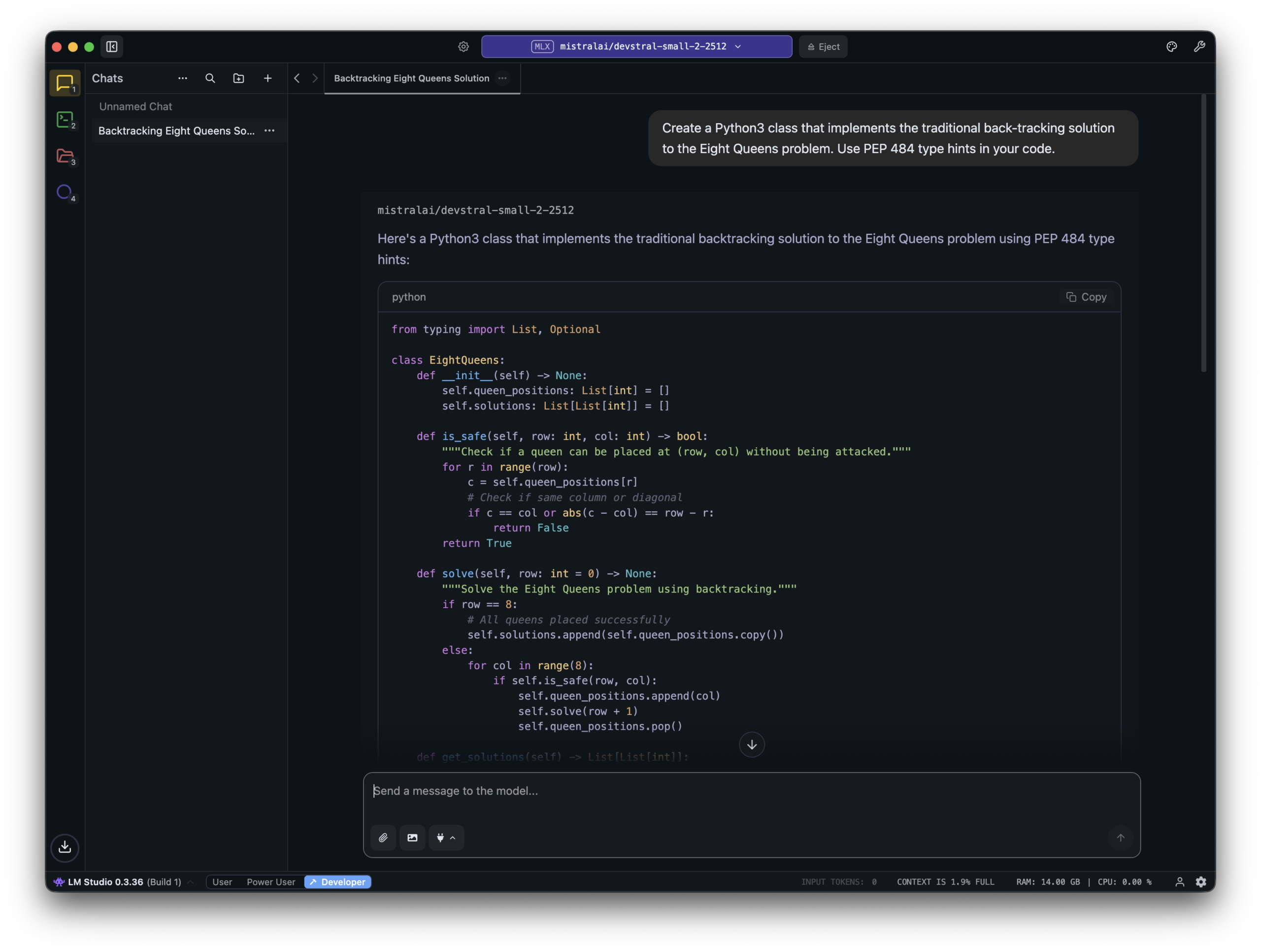
When your model is downloaded, switch to the Chats view in LM Studio. In the window toolbar, click “Select a model to load” and choose the model you just downloaded. Optionally, toggle “Manually choose model load parameters” and configure settings. I typically alter the context size, as the default model size is 4096 tokens which optimises for inference speed and small memory footprint over a large “working set”. Click “Load Model” to tell LM Studio to serve the model. You can also tell LM Studio to use the model’s maximum context size as the default whenever it loads a model, in the app’s settings.
When LM Studio loads your chosen model, it opens a new chat with the model. Type a prompt into this chat to validate that the model is working, and has enough resources for inference tasks.
Download, configure, and test a coding assistant
Coding assistants typically expect to take an API key, and communicate with a model hosted in the cloud. To use a local LLM, you need to configure the assistant.
Follow the instructions in the Vibe studio README to install the tool. In Terminal, run mkdir ~/.vibe. Use your text editor to save the following content in a file called ~/.vibe/config.toml:
active_model = "devstral2-small-local"

[[providers]]
name = "lmstudio"
api_base = "http://localhost:1234/v1"
api_key = "LM_STUDIO_API_KEY" # LM Studio doesn't use this value
api_style = "openai"
backend = "generic"

[[models]]
name = "mistralai/devstral-small-2-2512"
provider = "lmstudio"
alias = "devstral2-small-local"
temperature = 0.2
input_price = 0.0
output_price = 0.0
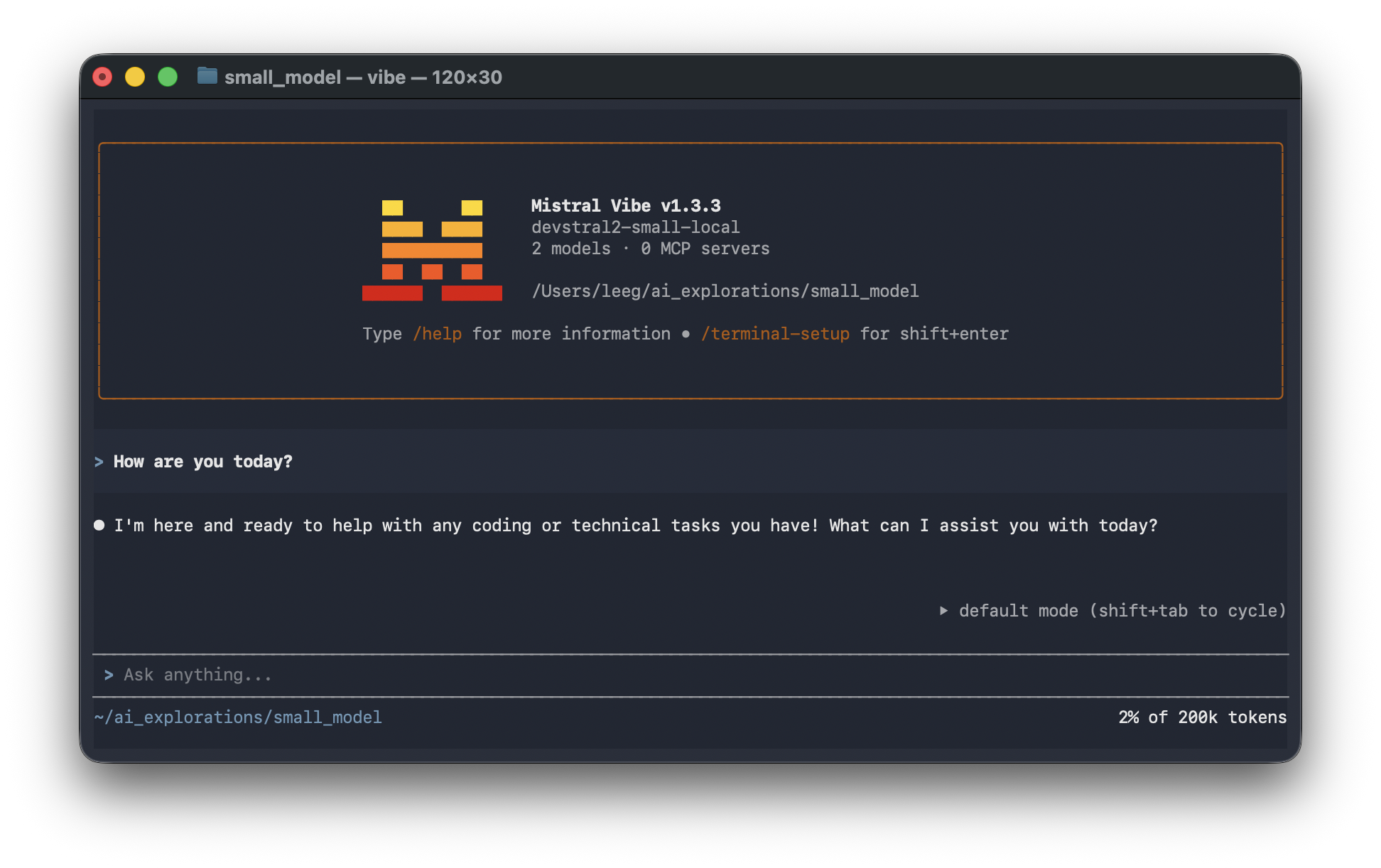
Now test the assistant by running vibe in Terminal, and typing a prompt into the assistant.
Further learning
I’ve recently started Chiron Codex, an initiative to create software engineering centaurs by augmenting human knowledge of the software craft with AI assistance. You can find out more, and support the project, over on Patreon. Thank you very much for your support!